Completing a Follow-Up Assessment
This topic is intended for Independent pharmacies only and is not applicable to Rexall pharmacies.
This topic is applicable to Alberta pharmacies only.
A follow-up assessment allows the results of a trial to be documented and a Patient Focused Service (PFS) prescription to be created and submitted for reimbursement.
The follow-up assessment can be completed from three locations. Use the dropdowns below to learn more.
 From the Activities Tile
The follow-up assessment activity is created automatically after an initial assessment is completed.
To complete a follow-up assessment:
-
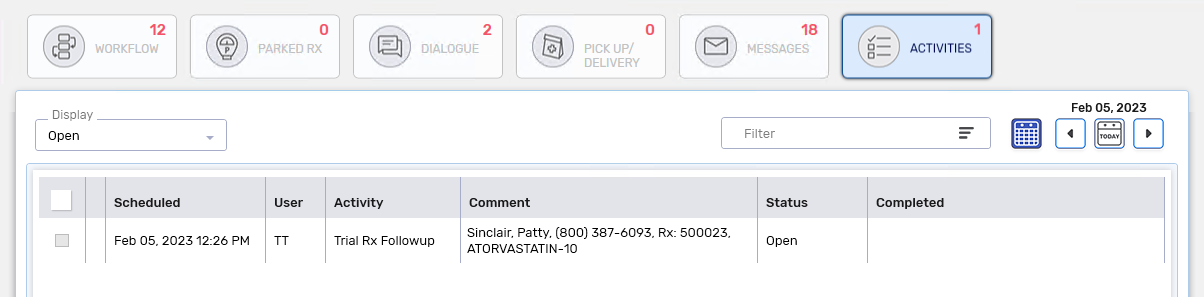
On the Activities tile, select the Trial Rx Followup activity.
-
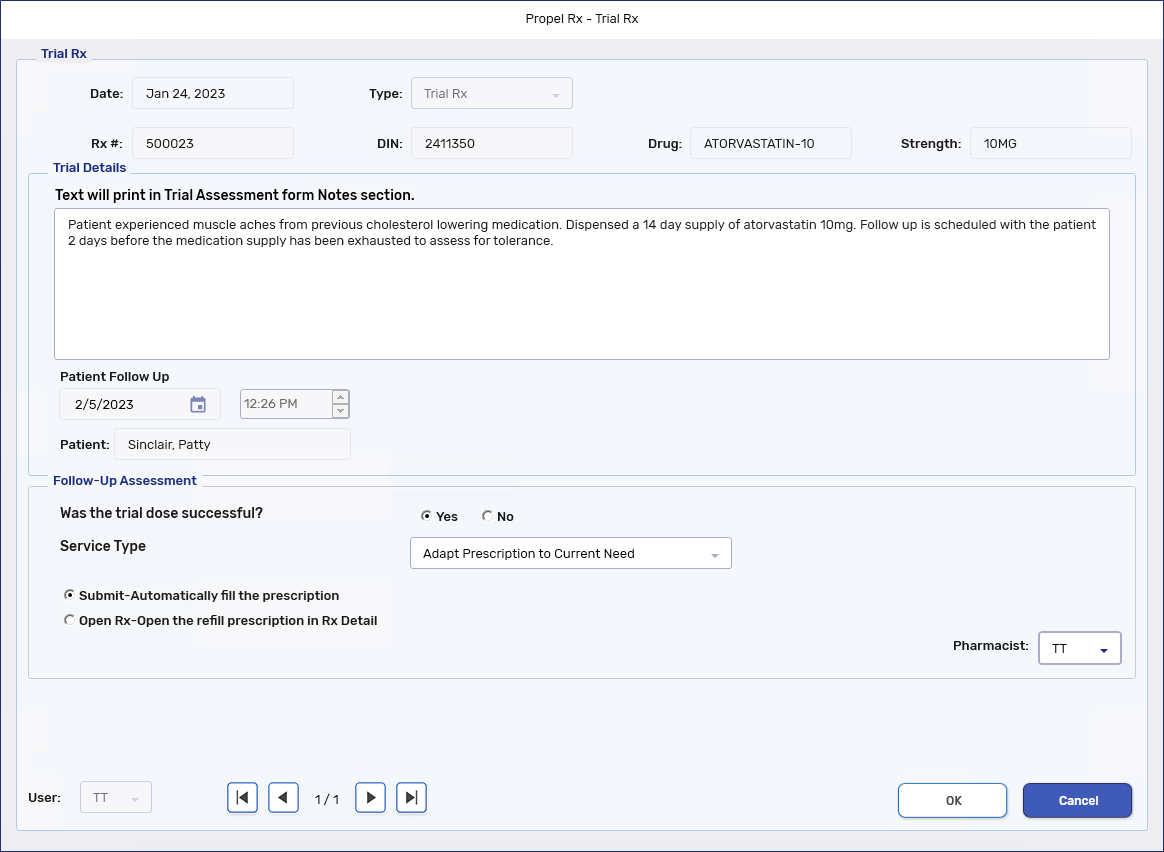
Select Complete. The Trial Rx window opens.
-
In the Follow-Up Assessment section, select the appropriate option for the question, "Was the trial dose successful?"
-
Yes - auto-inserts the VQ intervention code for the PFS prescription
-
No - auto-inserts the VN intervention code for the PFS prescription
-
-
From the Service Type dropdown, select the applicable option.
-
Adapt prescription to Current Need - auto-inserts the H Special Service Code (SSC) for the PFS prescription.
-
Follow-Up Assessment of Patients Needs - auto-inserts the M SSC for the PFS prescription.
-
-
Depending on the outcome of the trial, complete the following:
-
If the trial dose was successful, select the option to fill the balance remaining in the prescription automatically or open Rx Detail to manually refill the prescription.
-
If the trial dose was not successful, select whether to Inactivate the prescription. If Yes is selected to Inactivate the prescription, the Inactivate Rx window opens for you to complete. If No is selected, the prescription remains active.
-
-
Dropdown the Pharmacist field and select the appropriate initials if needed.
-
Select OK. The following updates are made:
-
The activity changes to a Completed status.
-
The clinical note in the Patient Folder is updated with details of the follow-up assessment.
-
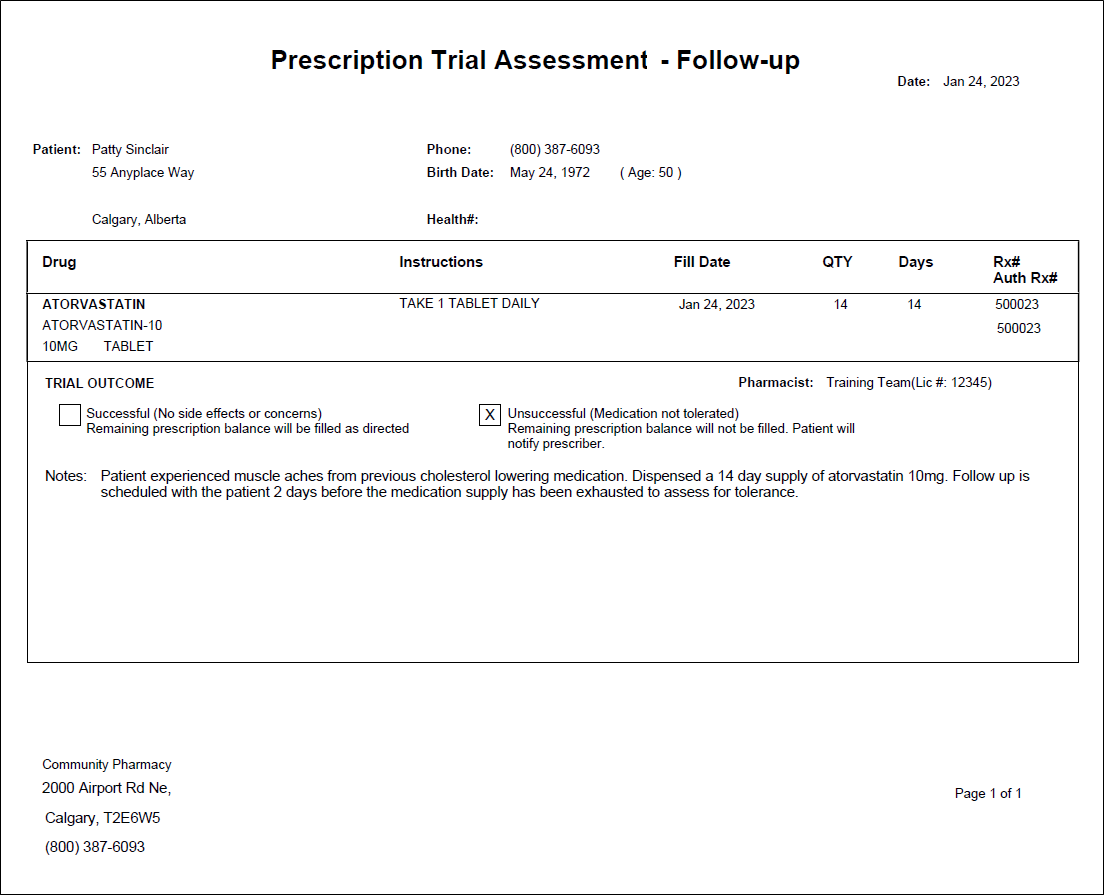
The prescription Trial Assessment attachment is updated to include the details of the follow-up assessment.
-
A PFS prescription is created and auto-processed with the applicable PIN according the responses in the follow-up assessment and APA designation of the pharmacist. If the PFS PIN already exists on the patient's Profile with a status of Complete or Amend, the prescription chain is continued.
To update the APA status of a pharmacist user, log into Propel Rx as ADM and select the APA checkbox for the applicable user in the Security window.
-
 From the Patient Profile
To complete a follow-up assessment:
-
Select the Trial Rx on the patient's Profile.
-
Select Rx > PFS > Trial Rx. The Trial Rx window opens.
-
In the Follow-Up Assessment section, select the appropriate option for the question, "Was the trial dose successful?"
-
Yes - auto-inserts the VQ intervention code for the PFS prescription
-
No - auto-inserts the VN intervention code for the PFS prescription
-
-
From the Service Type dropdown, select the applicable option.
-
Adapt prescription to Current Need - auto-inserts the H Special Service Code (SSC) for the PFS prescription.
-
Follow-Up Assessment of Patients Needs - auto-inserts the M SSC for the PFS prescription.
-
-
Depending on the outcome of the trial, complete the following:
-
If the trial dose was successful, select the option to fill the balance remaining in the prescription automatically or open Rx Detail to manually refill the prescription.
-
If the trial dose was not successful, select whether to Inactivate the prescription. If Yes is selected to Inactivate the prescription, the Inactivate Rx window opens for you to complete. If No is selected, the prescription remains active.
-
-
Dropdown the Pharmacist field and select the appropriate initials if needed.
-
Select OK. The following updates are made:
-
The Trial Rx Followup activity changes to a Completed status.
-
The clinical note in the Patient Folder is updated with details of the follow-up assessment.
-
The prescription Trial Assessment attachment is updated to include the details of the follow-up assessment.
-
A PFS prescription is created and auto-processed with the applicable PIN according the responses in the follow-up assessment and APA designation of the pharmacist. If the PFS PIN already exists on the patient's Profile with a status of Complete or Amend, the prescription chain is continued.
To update the APA status of a pharmacist user, log into Propel Rx as ADM and select the APA checkbox for the applicable user in the Security window.
-
From Rx Detail When refilling a Trial Rx
To complete a follow-up assessment:
-
Select the Trial Rx on the patient's Profile.
-
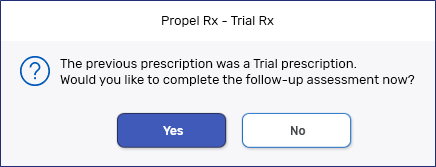
Select Refill. A prompt appears asking if the follow-up assessment should be completed.
This prompt does not appear for Batched or background processed Auto Refill prescriptions.
-
Select Yes. The Trial Rx window opens.
-
In the Follow-Up Assessment section, select the appropriate option for the question, "Was the trial dose successful?"
-
Yes - auto-inserts the VQ intervention code for the PFS prescription
-
No - auto-inserts the VN intervention code for the PFS prescription
-
-
From the Service Type dropdown, select the applicable option.
-
Adapt prescription to Current Need - auto-inserts the H Special Service Code (SSC) for the PFS prescription.
-
Follow-Up Assessment of Patients Needs - auto-inserts the M SSC for the PFS prescription.
-
-
Dropdown the Pharmacist field and select the appropriate initials if needed.
-
Select OK. Rx Detail opens for the refill. The following updates are made:
-
The Trial Rx Followup activity changes to a Completed status.
-
The clinical note in the Patient Folder is updated with details of the follow-up assessment.
-
The prescription Trial Assessment attachment is updated to include the details of the follow-up assessment.
-
A PFS prescription is created and auto-processed with the applicable PIN according the responses in the follow-up assessment and APA designation of the pharmacist. If the PFS PIN already exists on the patient's Profile with a status of Complete or Amend, the prescription chain is continued.
To update the APA status of a pharmacist user, log into Propel Rx as ADM and select the APA checkbox for the applicable user in the Security window.
-
-
Select Fill to process the refill or Escape to abort the refill. The Trial Rx checkbox is turned off for the refill.